Connect Your Amazon Seller Account to Your Own AI: The Complete MCP Guide

TL;DR
Step by step: connect Amazon Seller Central to AgentXray, plug it into Claude or ChatGPT over MCP, ask about your real profit, and let your assistant draft changes that only you can approve.
✨ AI-assisted writing, human editorial review by Avanta Global EOOD. Learn more
Most Amazon "AI tools" are a chat box bolted onto a dashboard. You still log into their app, you still read their charts, and the AI still guesses at numbers it cannot see.
AgentXray works the other way round. You connect your Amazon seller account once, and then your own AI assistant — Claude, ChatGPT, Cursor, whatever you already pay for — gets a direct, authenticated line to your measured Amazon numbers. You ask in your own words, in your own language, in the app you already have open. And when the assistant wants to change something in your account, it cannot: it can only draft, and you approve.
This guide walks the whole path, in order: connect the account, connect the assistant, ask questions, act on the answers, and measure whether acting was worth it.
What MCP is, in thirty seconds
MCP (Model Context Protocol) is an open standard for connecting an AI assistant to an external system — a set of tools the model can call, with a defined schema for each one. It is the same mechanism that lets Claude read a GitHub repository or a Google Drive folder.
AgentXray runs a remote MCP server at https://agentxray.ai/api/mcp. It exposes two kinds of tools: read tools that return your measured Amazon numbers, and draft tools that prepare changes for your approval — the current list is on the connector page. Your assistant discovers them automatically the moment the connection is made.
What matters for a seller is what this removes:
- No copy-paste. You do not export a report and paste it into a chat window, where the model then does arithmetic on a stale spreadsheet.
- No second dashboard. The answer arrives where you already are — including the Claude mobile app, out loud.
- No hallucinated numbers. Every result carries where it came from. More on that below, because it is the part that took the most work.
Step 1 — Connect your Amazon seller account
This is the only step that touches Seller Central, and it takes about a minute.
- Open AgentXray → Settings → Amazon Connection.
- Pick your primary marketplace. The picker is grouped by region — North America, Europe, Far East — because the authorization region is decided by where your account lives, not by where you sell most.
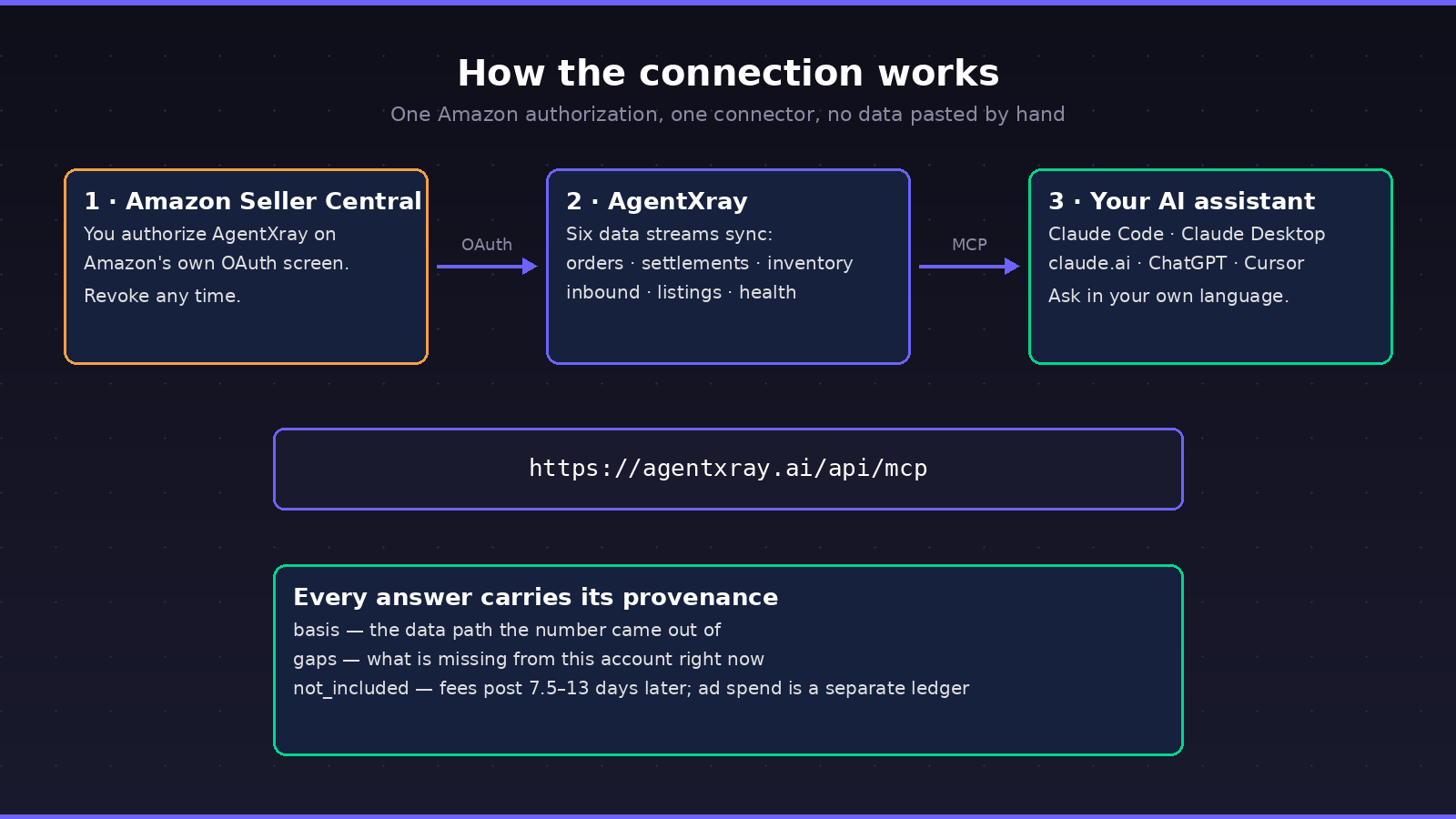
- Press Connect Amazon Account. You are redirected to Amazon Seller Central to authorize AgentXray. This is Amazon's own OAuth screen; your credentials are never typed into AgentXray.
- Approve, and you land back on the connection page.
Then the account starts filling. AgentXray pulls six data streams in the background and shows you the progress of each one: orders, settlements, inventory, inbound shipments, listings, account health. First orders usually appear within a minute; settlement history takes longer because there is more of it.
Two things worth knowing here:
- If a stream reports "needs the ... role — reconnect to grant it", your authorization is missing one of the SP-API roles that stream depends on. Reconnecting and granting it fixes it; nothing else is broken.
- You can disconnect at any time from the same page. Disconnecting stops the syncing; re-authorizing resumes it.
Step 2 — Connect your AI assistant
Now the interesting part. There are four ways in, depending on which assistant you use. All of them point at the same endpoint.
Claude Code (terminal)
In AgentXray, go to Settings → AI Assistant → Create token. The panel gives you a one-line command with the token already in it — paste it into your terminal:
claude mcp add --transport http agentxray https://agentxray.ai/api/mcp --header "Authorization: Bearer axr_..."
The token is shown exactly once. The server never returns the secret again, so copy it while it is on screen. You can revoke it from the same panel whenever you want, and mint a new one.
Claude Desktop and claude.ai
In Claude, open Customize in the left menu, go to the Connectors tab, press Add at the top right and choose "Add custom connector", then enter https://agentxray.ai/api/mcp. Your browser opens an AgentXray consent screen; approve read-only access and you are connected. No token to copy, no terminal. (Anthropic's own documentation says custom connectors need a paid Claude plan.) The walked-through steps are on our Claude setup page.
A connector added on claude.ai is also available in the Claude mobile app — so this one step is also the setup for asking your Amazon questions out loud, on the way to work.
ChatGPT
This works even on a free ChatGPT account, verified live: open Settings → Apps and turn on Developer mode (it is its own row inside Apps and carries a high-risk label), then create the connector with the + at the top right of the app list, using https://agentxray.ai/api/mcp and OAuth. The same AgentXray consent screen opens in your browser. The walked-through steps are on our ChatGPT setup page.
Any other MCP client
Cursor and friends: Streamable HTTP endpoint https://agentxray.ai/api/mcp, with either OAuth or a bearer token in the Authorization header.
Want to try before connecting anything?
There is a public demo token on the connector page that reads a synthetic demo seller — three products, 90 days of history, one of them quietly losing money, one with no cost recorded, one aging in FBA. No account, no Amazon connection, no risk. It is the fastest way to see what the answers actually look like.
Step 3 — What you can now ask
Once connected, your assistant can call the read tools. You never name them; you just ask normally and the model picks. Some of them, grouped by what they answer (the full, current list is on the connector page):
Money. get_profit_summary — real revenue, Amazon fees, COGS, net profit and margin over a window, grouped per currency. get_profit_by_sku — the same, ranked per SKU, so "which product actually makes money" has an answer instead of a feeling. get_my_product_costs — what unit costs are on file, because a SKU with no saved cost is counted at zero cost and its profit is an overestimate.
Ads. get_ads_overview, get_ads_campaigns, get_ads_targets, get_ads_search_terms — spend, sales, clicks, orders, ACoS, ROAS, budget utilisation, current bids, and which search terms are already negated.
Operations. get_buybox_status — win rate, which SKUs are losing the Buy Box right now and by how much. get_inventory_age — how stock is spread across age buckets and what is drifting toward long-term storage fees. list_my_marketplaces — so the assistant never guesses a marketplace id.
Judgment. daily_brief — one short paragraph, written to be heard rather than read. did_my_changes_work — the measured outcome of changes you approved. what_i_cannot_tell_you — the honest limits of your own account's data, checked live.
Real questions sellers ask on day one:
- "How did today go?"
- "What did I actually make in the last 30 days — and what is not included in that number?"
- "Which of my SKUs is losing money right now?"
- "Where am I losing the Buy Box, and by how much?"
- "Is any of my FBA stock heading toward long-term storage fees?"
- "How much should I trust these numbers?"
If you do not know what to ask, you do not have to compose anything. The server ships ready-made prompts that appear in Claude Code as slash commands — weekly_profit_audit, losing_money, ad_waste_scan, inventory_risk, buybox_check, did_it_work, daily_brief. The first question is a menu pick.
The part that makes the answers usable: every number names its source
Here is the failure mode of every AI-plus-dashboard product: the model gets a number, loses track of where it came from, and produces a confident sentence that is quietly wrong.
Every result from this server is wrapped in a provenance envelope with three fields:
basis— the data path the number came out of. For profit, that is Amazon fee events that posted inside the window, joined to your own orders, plus your saved product costs — not Amazon's fee estimate endpoint, which is known to understate (it excludes consumption tax such as AU GST).gaps— what is missing right now, measured against your account.not_included— the things a seller would reasonably assume are in the number and are not.
That last one is where the honesty lives. A few examples that ship verbatim in the tool results:
- Amazon posts fee events roughly 7.5–13 days after purchase. A profit window ending today under-reports the last two weeks of sales. Today's profit does not exist as a measured number, and the daily brief says so out loud rather than quoting you a figure.
- Ad spend is billed separately from Amazon settlements and is not deducted from the profit tools. Ads reporting and settlement figures are different ledgers on different clocks; they will not reconcile line by line.
- The bid shown on a target is the ceiling you set, not the price you paid per click.
- Amounts are never converted between currencies. Each currency is reported on its own.
The assistant is instructed to state the basis, repeat the gaps verbatim, and never fill a hole with an estimate. If a number is missing, the answer says it is missing.
Step 4 — When the assistant wants to change something
Reading is where most tools stop. This is where AgentXray starts being an operations app.
Your assistant can draft changes such as a listing update (title and bullets), a price change, an FBA shipment plan, a bid change, negative keywords, a campaign budget, and pausing or enabling a campaign — the full, current list of draft tools is on the connector page.
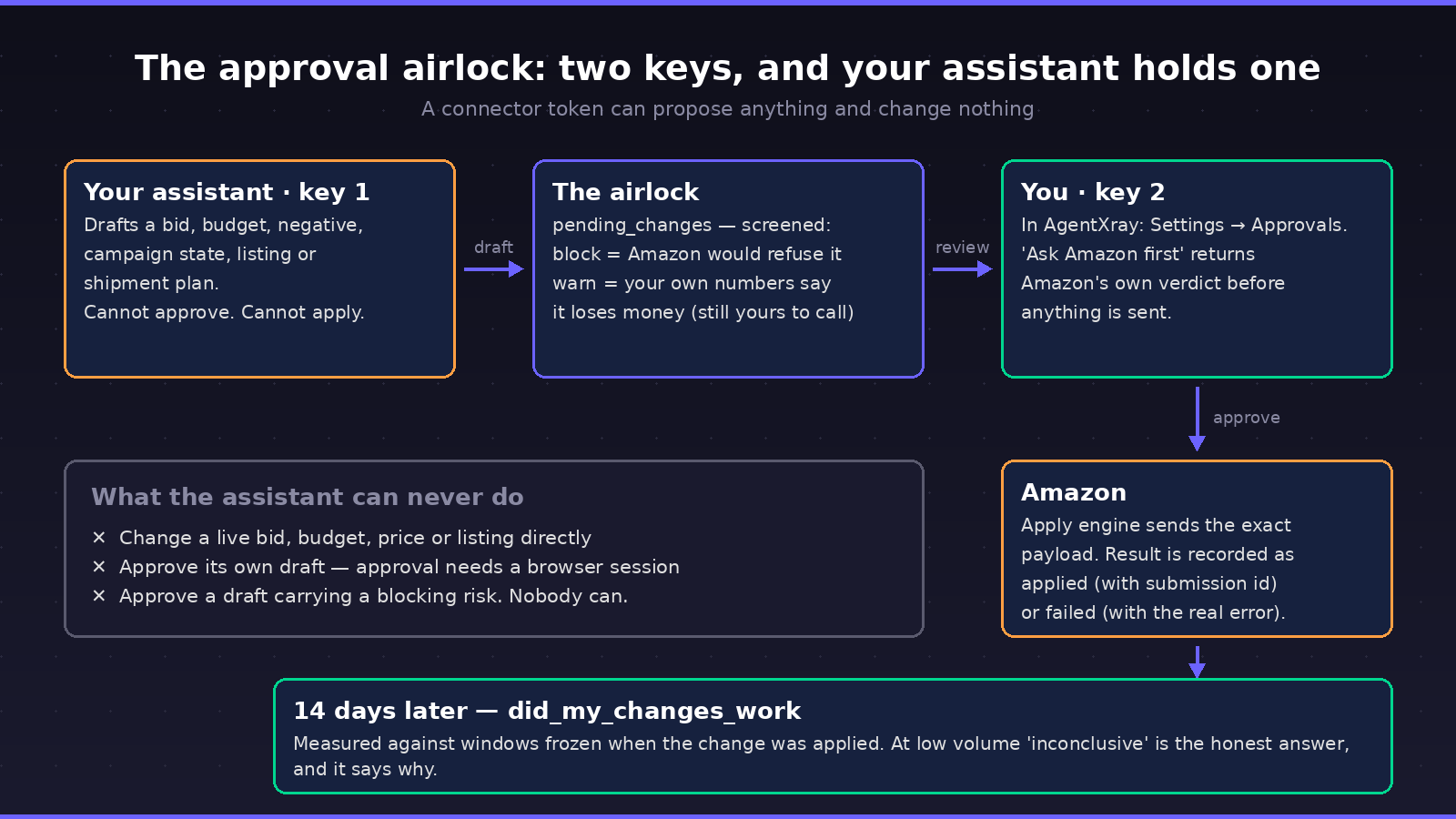
None of them touch Amazon. Every one creates a draft in AgentXray's approval airlock, and the assistant is told to tell you so.
Two keys, and the assistant only holds one
The separation is structural, not a policy we remember to follow. An MCP connector token can create drafts and nothing else. Approval happens only in the AgentXray panel, with a browser session. A leaked connector token can propose all it wants and change nothing.
Write access is also opt-in per token: you tick a box when you mint it, and the box resets afterwards so the next token does not silently inherit the decision. The OAuth consent screen never offers write at all.
What the draft comes back carrying
Drafts are screened before they reach you, and the screen has two severities that mean genuinely different things:
- Block — Amazon will refuse this. A bid outside the allowed range, a budget of zero, a title over 75 characters. A blocked draft can never be approved, because approving it could only fail.
- Warn — your own numbers say this loses money. Still approvable. You might be launching, clearing stock, or buying share for reasons the software cannot see, and blocking there would be us overruling a business we do not run.
The economics behind the warning are measured, not modelled: bid proposals are priced against the fees Amazon actually deducted from your settlement line items, so what comes back is your break-even CPC, not a rate card. A negative keyword proposed on a handful of clicks comes back warning you that zero orders on single-digit clicks is what a normal conversion rate looks like most of the time. Pausing a campaign that is producing orders comes back stating the contribution you would stop along with the spend.
And when the numbers cannot be produced at all — too few settled orders, no unit cost saved for the SKU — the draft says so. An unpriced change presented as safe is the exact defect this system is built to prevent.
Approving
Open Settings → Approvals. Each draft shows what changes, its risks, and how old it is. Two buttons matter:
- "Ask Amazon first" sends the exact payload through Amazon's validation preview and returns Amazon's own verdict — accept or reject — without touching the listing. Learning after the fact that Amazon refused a change costs hours of ad-eligible visibility, so it is worth the click.
- "Approve & send to Amazon" applies it. The row goes to
appliedwith Amazon's submission id, or tofailedwith the real error text. There is no state where the panel says approved while nothing was attempted.
A draft older than seven days is flagged stale — the economics inside it were frozen when it was written, and fee rates do change. That is advisory: you can apply it anyway with one extra confirmation.
You are not expected to live in the panel, either. Three emails fire on their own: when a draft is created, the moment it applies or fails, and when the outcome is judged about two weeks later. There is no daily reminder — the panel shows how many drafts are still waiting.
Step 5 — Did it actually work?
Two weeks after a change is applied, did_my_changes_work reports what happened to conversion in the fortnight afterwards, judged against windows frozen at the moment the change was applied.
The verdicts are deliberately conservative, and this is the feature, not a limitation. At low volume, "inconclusive" is the honest answer — and it says exactly why: thin traffic, ordinary day-to-day swing, or another change to the same listing inside the window. A change whose window has not closed yet reports measuring, with the date it can first be read.
It also states its own ceiling: this is what happened alongside the change, not proof the change caused it. Ads, competitors, reviews, promotions and season all moved in the same window. And changes you made directly in Seller Central are invisible to it, including ones that landed inside a measured window.
Anyone who promises you clean causal attribution on a single-SKU listing at a few sales a day is selling you a confidence interval they did not compute.
What this does not do
- It does not source products, scrape competitors, or estimate anyone else's sales. It measures your account. If that is what you are looking for, our tool comparison for EU sellers is a better starting point.
- It does not act on its own. There is no autopilot; every change waits for a human.
- It does not convert currencies, and it does not invent a number to fill a gap.
- Without a saved unit cost for a SKU, its profit is overstated by the entire cost of goods — and
what_i_cannot_tell_youwill tell you which SKUs those are, unprompted.
Get started
- Try the demo connector — no account needed, 60 seconds.
- Connect your Amazon account under Settings → Amazon Connection.
- Mint a token under Settings → AI Assistant, or add the custom connector in Claude or ChatGPT.
- Ask: "How much should I trust these numbers?" It is the most revealing first question you can ask any Amazon tool, and this one answers it with a measurement instead of a marketing sentence.
About this article
This article was researched and drafted with AI assistance. Before publication, it passed automated editorial review against Avanta Global EOOD's published editorial standards (factual accuracy, source attribution, voice & readability). Our editorial standards page documents exactly what we check. We continuously monitor published content for accuracy and update articles when new information emerges. Learn more about our editorial process and the team behind AgentXray.